Expert Guides & Troubleshooting
Master the art of GPU stability testing with our official guides. Learn to troubleshoot like a pro and push your hardware safely.
Master the art of GPU stability testing with our official guides. Learn to troubleshoot like a pro and push your hardware safely.
FurMark is a "GPU Burner" designed to pull maximum power. Do not run FurMark if you have:
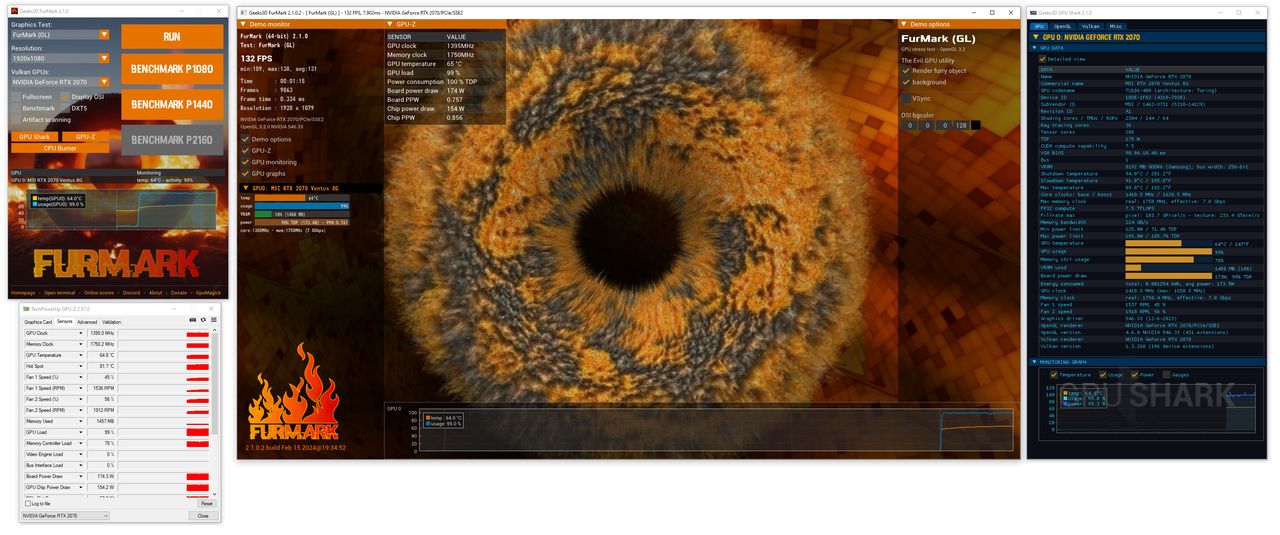
Close all other intensive applications and monitoring tools that might conflict. Ensure your GPU drivers are up to date. Open a hardware monitor like GPU-Z to track secondary sensors.
Start with a standard preset (e.g., 1080p). Enable "Artifact Scanner" to automatically detect stability issues. If testing an overclock, start with "Windowed" mode to easily exit if the system hangs.
Run the test for 15-30 minutes for a quick stability check, or 2 hours for a thorough "burn-in" verification. Watch the temperature curve—it should level off and stay within safe limits (usually below 85-90°C).
If you see your clock speeds dropping or the frame rate becoming inconsistent, your GPU is likely thermal throttling.
A total system shutdown during FurMark usually indicates a Power Supply Unit (PSU) failure. The extreme power draw of the "GPU Burner" can trigger OCP (Over Current Protection).